
How to print a booklet on Windows
The free ways to put a PDF in booklet order on a PC, the print settings that matter, and a walkthrough with BookletMaker's Windows app.
Updated 28 November 2026
To print a booklet on Windows, put the PDF's pages in booklet order with your printer's booklet option, Adobe Acrobat Reader or a booklet app, then print on both sides of the paper, flipping on the short edge at actual size, and fold and staple the sheets. The part Windows can't do by itself is the page order: its print dialog sends pages one after another, and a booklet needs them rearranged so they read correctly once the paper is folded.
The short version
- Open the PDF in a tool with a booklet layout.
- Pick your paper. Letter makes a 5.5 × 8.5 inch booklet and A4 makes an A5 booklet.
- Print on both sides, flipped on the short edge, at actual size.
- Fold the sheets, slide them inside each other and staple along the fold.
Can Windows print a booklet on its own?
Not quite. The Windows print dialog, Microsoft Edge's PDF viewer and most apps print pages in reading order. Each sheet of a booklet carries four pages, though, and in an eight-page booklet the outside of the first sheet holds page 8 beside page 1. Rearranging the pages like that is called imposition. Three free ways to do it on a PC:
- Your printer's driver. Many printers add a Booklet option under Printing Preferences, often on a Layout or Finishing tab. Use it on an ordinary PDF only; on one that is already in booklet order it shuffles the pages a second time.
- Adobe Acrobat Reader. The free Reader has a booklet layout: choose File ▸ Print, then Booklet under Page Sizing & Handling.
- Microsoft Word, if you still have the original document: its Book fold page setting builds the booklet as you edit.
How to print a booklet with PDF Imposer for Windows
PDF Imposer: Booklet Maker for Windows is BookletMaker's Windows app. It shows each printed sheet before you print, and your PDF never leaves your PC. Booklets of up to 20 pages are free; a BookletMaker Pro registration code adds longer booklets, signatures for bookbinding, creep and gutters.
- Install it. On the Windows page, click Get it from the Microsoft Store, or Download for Windows to get the installer instead. It runs on Windows 10 (20H2) and Windows 11. The Microsoft Store version shows its buttons in your Windows language.
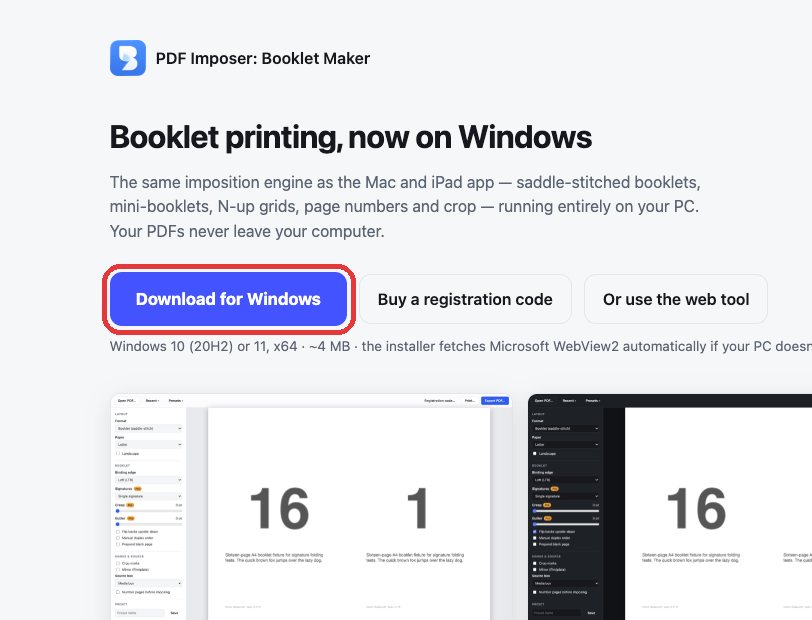
Download for Windows gets the installer; the Microsoft Store button sits beside it. - Open the PDF. Click Open PDF…, or drag the file onto the window.
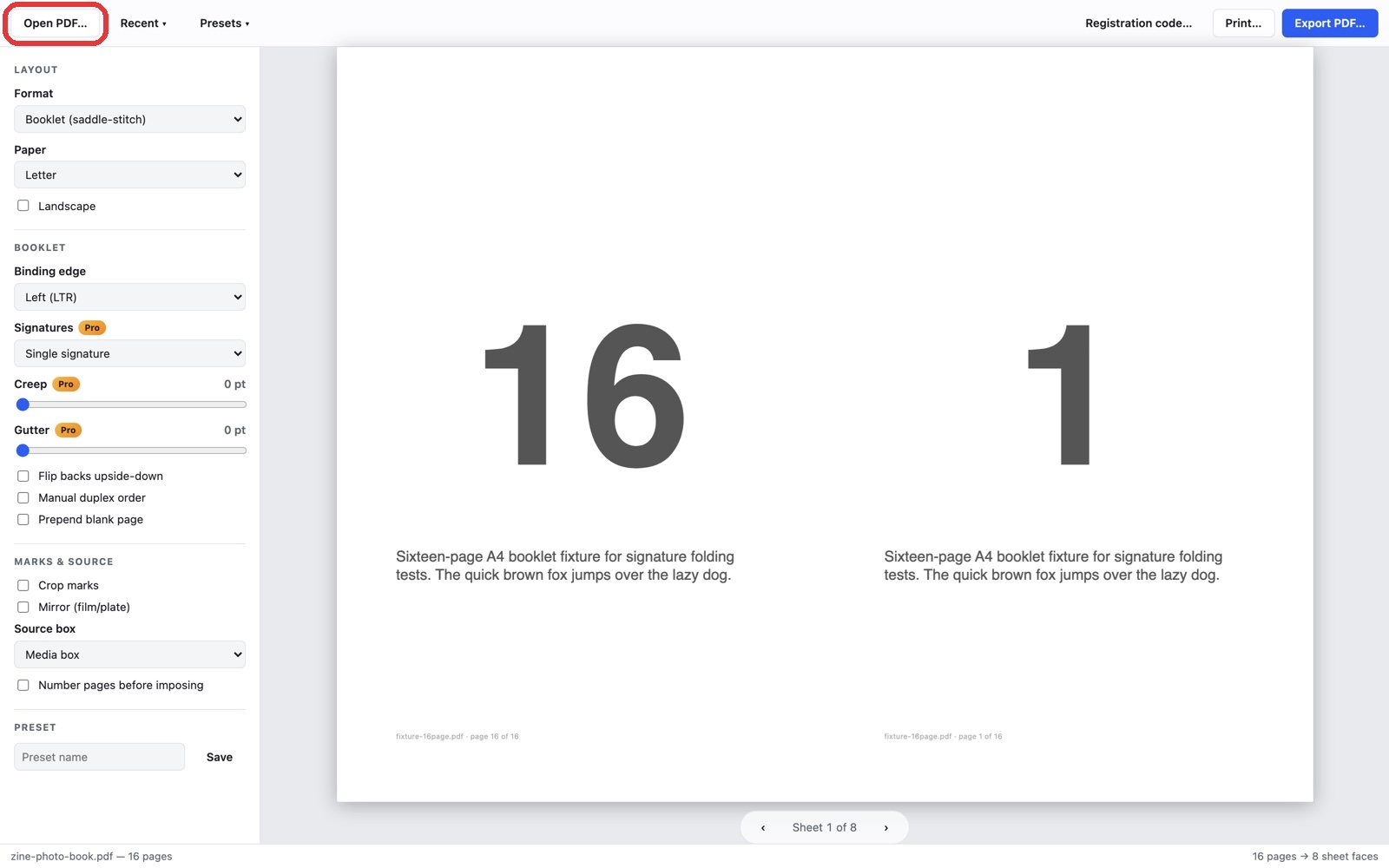
Click Open PDF… at the top left. - Choose the booklet layout. Under Layout, set Format to Booklet (saddle-stitch) and pick your Paper. Under Booklet, check the Binding edge: Left for most languages, Right for Arabic, Hebrew or manga.
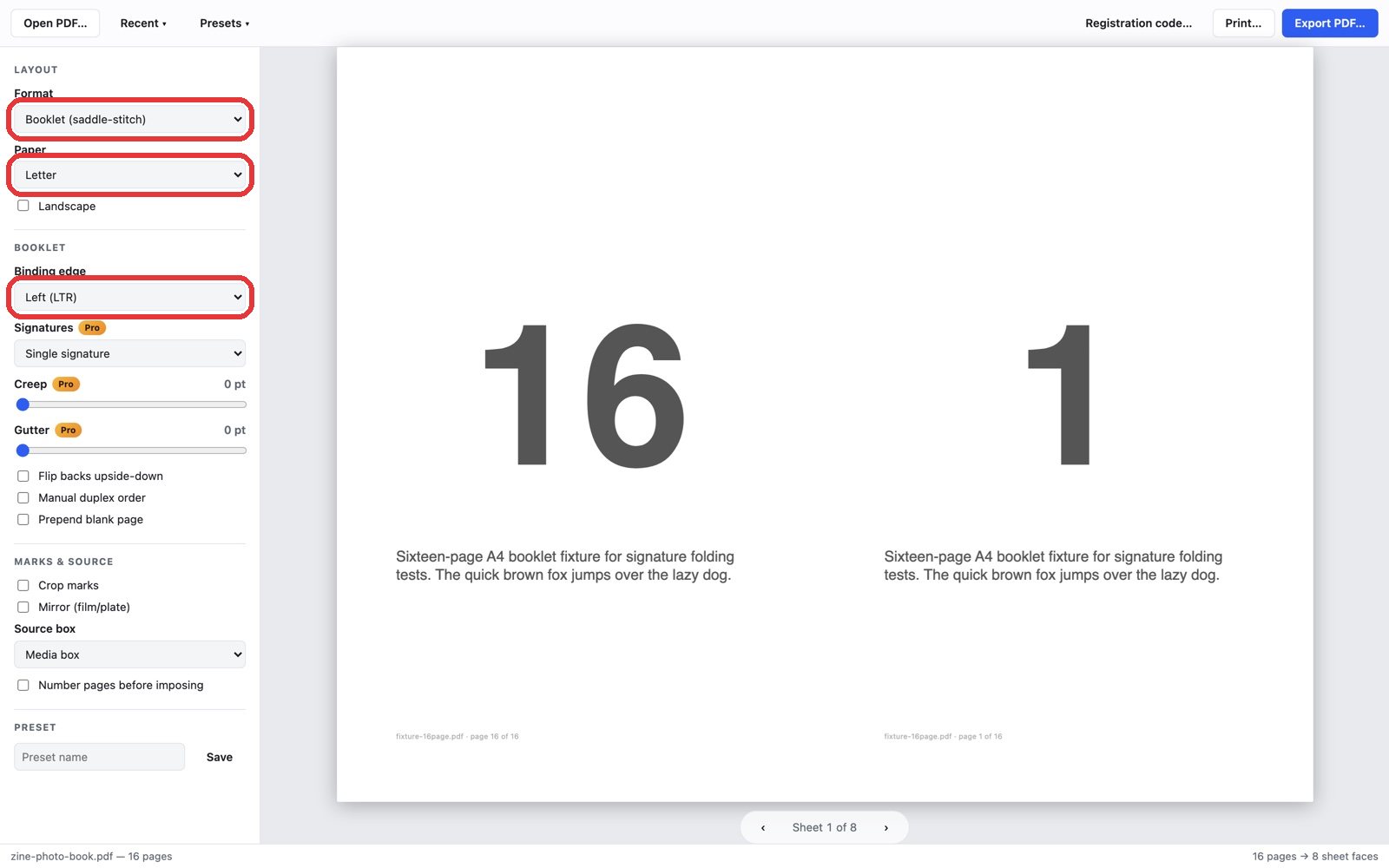
Set Format to Booklet (saddle-stitch), then check Paper and Binding edge. - Check the sheets. Step through the preview with the arrows below it. A 16-page PDF shows Sheet 1 of 8, with page 16 beside page 1.
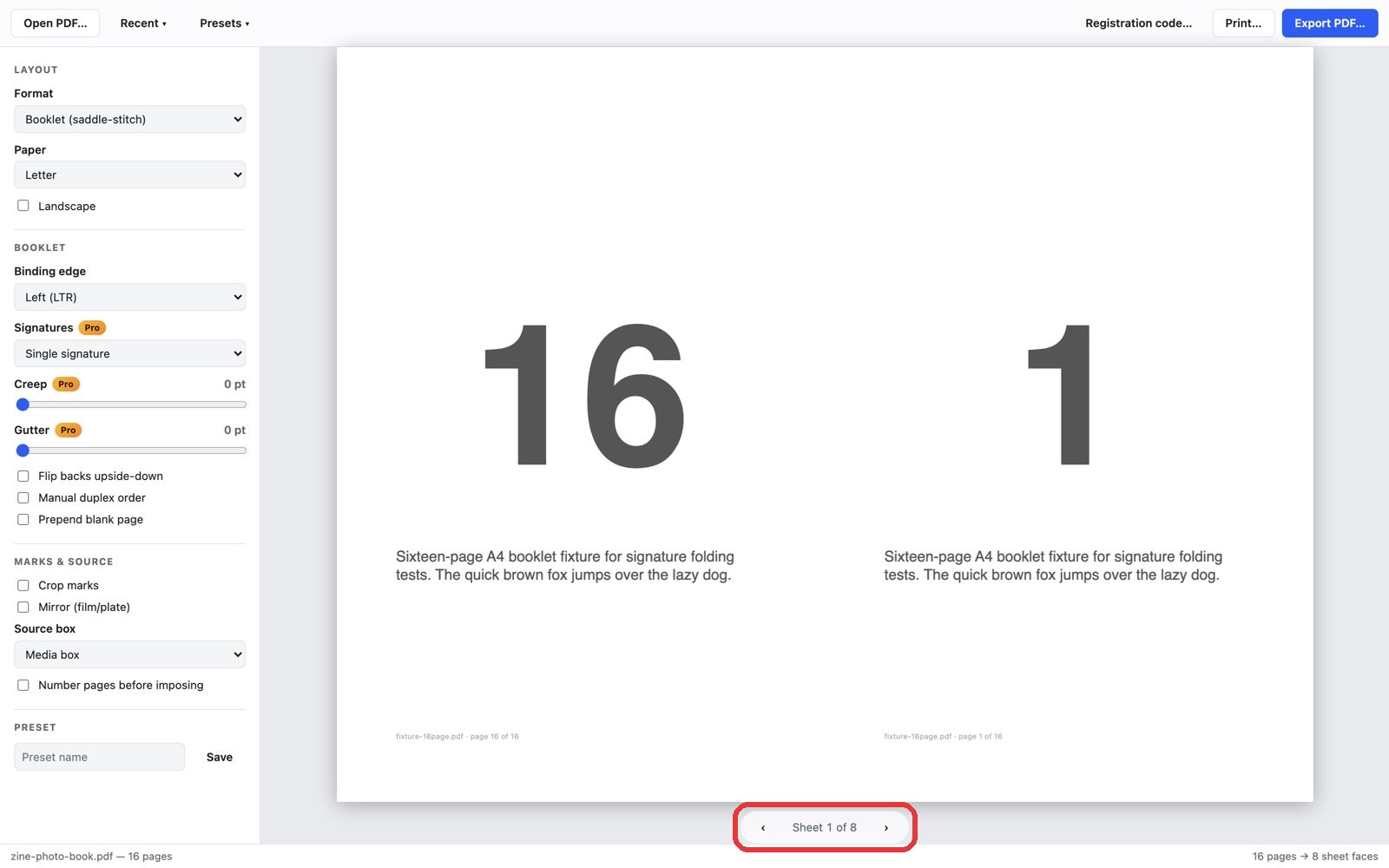
Use the arrows below the preview to step through the sheets. - Print or export. Click Print… to print through the Windows print dialog, or Export PDF… to save the laid-out booklet for later or for a print shop.
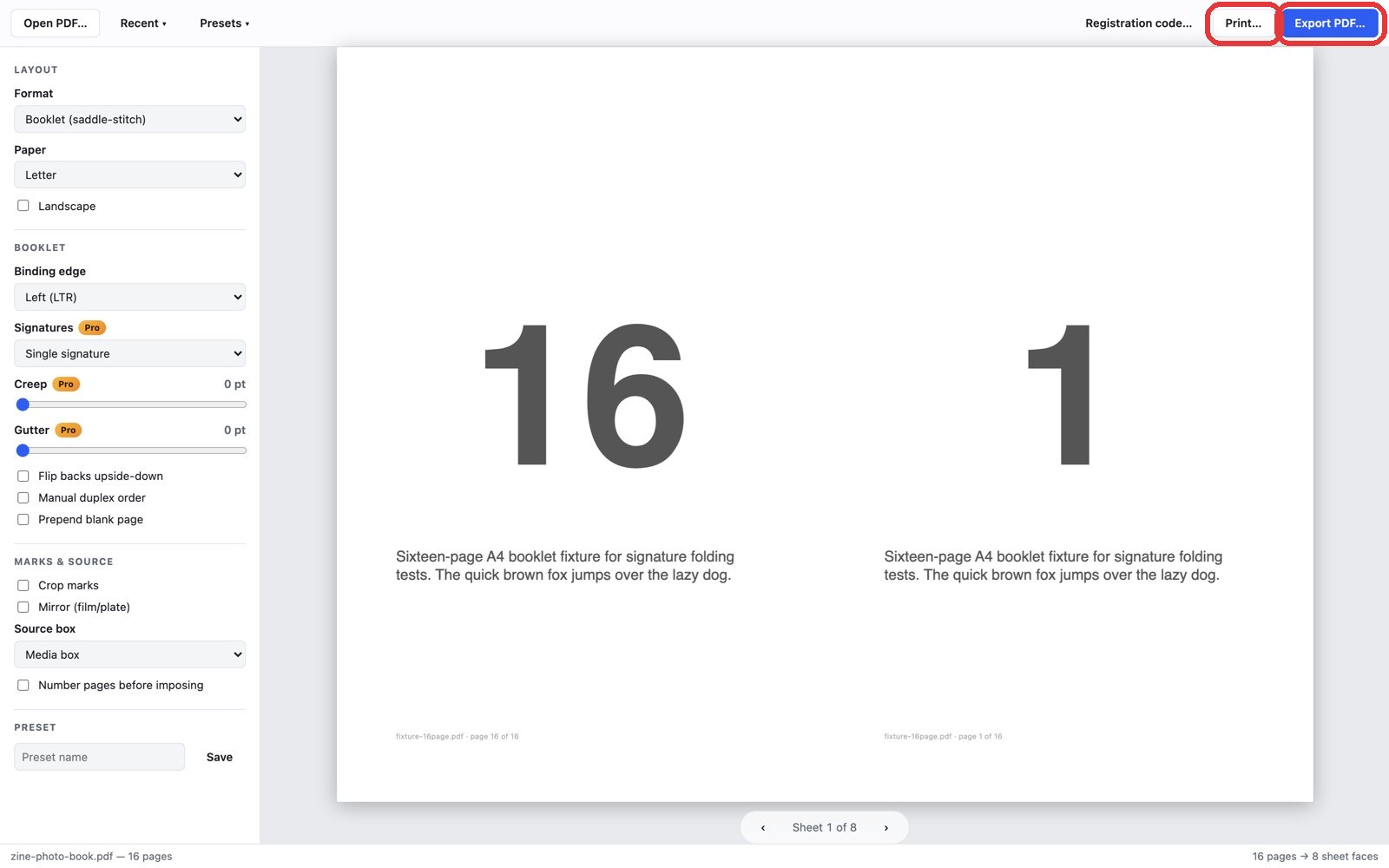
Print… prints the booklet; Export PDF… saves it.
Which Windows print settings matter?
- Print on both sides, flip on short edge. Choose two-sided printing in the print dialog or under Printing Preferences, and the short edge. Booklet sheets print in landscape, so a long-edge flip turns every back upside down.
- Actual size. Turn off any fit-to-page or shrink option, so the fold lands in the middle of each spread.
- One booklet layout only. Leave the printer's own booklet option off when you print from PDF Imposer.
- A test copy first. Print one copy on plain paper, fold it and read it through before printing the rest.
What if the backs come out wrong?
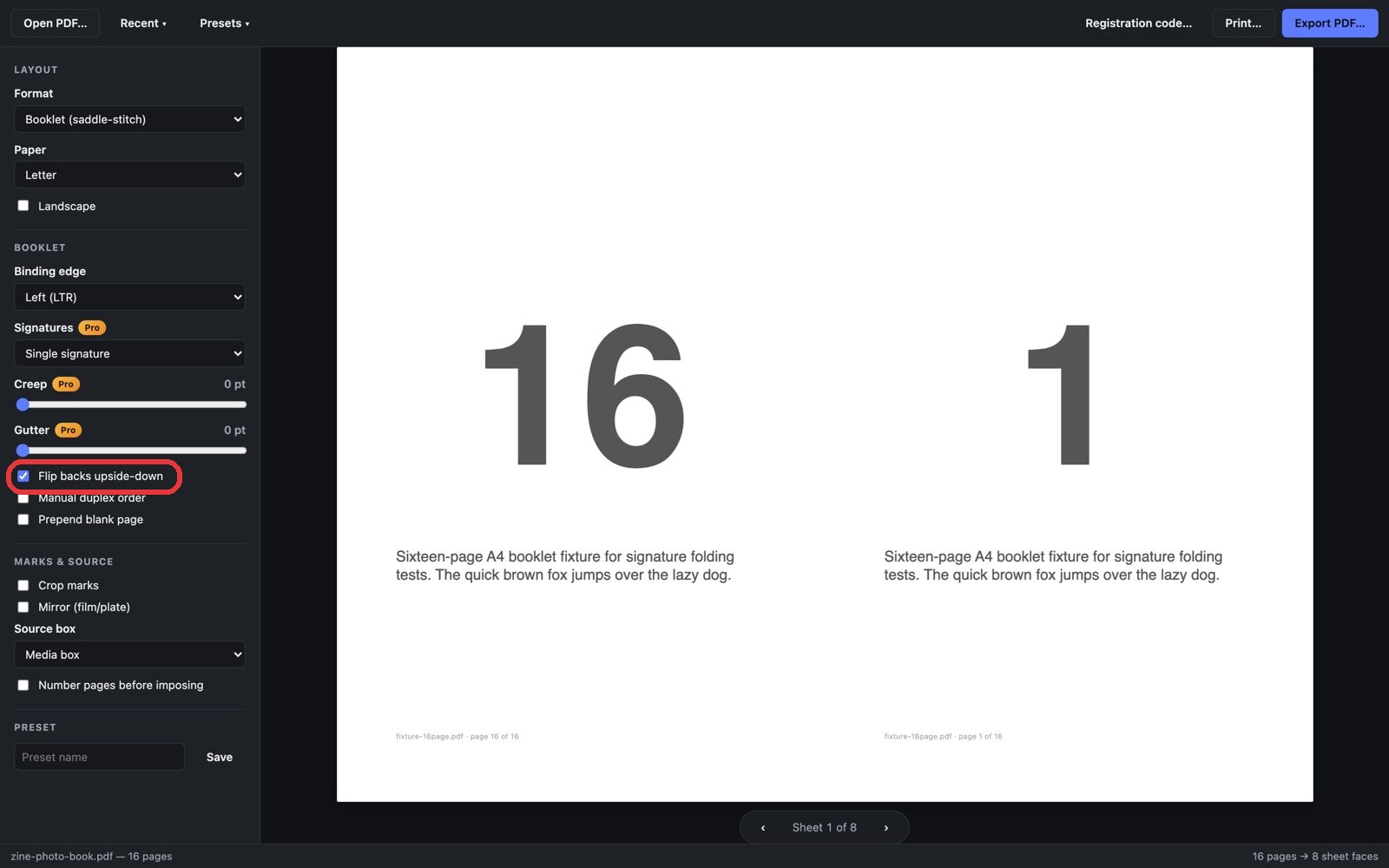
If every back is upside down, the printer turned the paper on its long edge. Switch to the short edge, or tick Flip backs upside-down in PDF Imposer and print again.
If your printer only prints on one side, tick Manual duplex order. The PDF then holds all the fronts first and all the backs after them, in the order a turned-over stack needs: print the first half of the pages, turn the stack over, put it back in the tray and print the second half. Printers differ in which way the paper has to go back in, so try it with one sheet first.
Fold and staple
Fold each sheet in half on its own, slide the sheets inside each other in order and staple through the fold; two staples suit most booklets. The PDF to booklet guide covers stapling without a long-arm stapler, sewing the spine and trimming thicker booklets.
Quick answers
Can Windows print a booklet without extra software?
Only if your printer's driver has a booklet option. The Windows print dialog and Microsoft Edge print PDF pages in reading order, so for a booklet you need the printer's booklet setting, Adobe Acrobat Reader, Word's Book fold or a booklet app.
Which print settings does a booklet need on Windows?
Print on both sides, flipped on the short edge, at actual size. If your printer only flips on the long edge, turn on Flip backs upside-down in PDF Imposer.
Is PDF Imposer for Windows free?
Yes. The download is free and makes booklets of up to 20 pages, and side-by-side layouts such as 2-up and 4-up at any length. A BookletMaker Pro registration code adds longer booklets, signatures, creep and gutters.
Can I make the booklet without installing anything?
Yes. The web tool at bookletmaker.app/tool/ lays out the same booklet in your browser, and your PDF stays on your computer.