
How to print a booklet from an iPhone or iPad
What the iPhone print screen can and can't do, how to lay a booklet out on the device and how to print it on any printer.
25 November 2026
To print a booklet from an iPhone or iPad, first lay the PDF out as a booklet in an app or a web tool, then print it with Double-sided turned on and fold and staple the sheets. The step you can't skip is the layout: the print screen on iPhone and iPad prints pages in reading order, and a booklet needs them rearranged so they read correctly once the sheets are folded.
The short version
- Open the PDF in something with a booklet layout, such as BookletMaker or its free web tool in Safari.
- Pick your paper size. The booklet comes out at half of it.
- Print with Double-sided on, or print the fronts and the backs in two passes.
- Print one copy, fold it and check it reads in order, then print the rest.
What can the iPhone print screen do?
From Files, Books, Mail or Safari, tap the Share button, then Print. Depending on the printer, you can choose copies, a page range, paper size, black and white, and Double-sided. That's enough for letters, tickets and forms.
There is no booklet setting, though. Each sheet of a booklet carries four pages that only read in order once the sheets are folded and nested: in an eight-page booklet, page 8 sits next to page 1 on the outside of the first sheet. That arrangement, called imposition, has to happen before the PDF reaches the print screen.
How to print a booklet with BookletMaker on iPhone and iPad
BookletMaker is on the App Store for iPhone and iPad. Booklet layouts and the two-pass printing help are part of BookletMaker Pro; the free web tool in Safari lays out booklets of up to 20 pages.
- Open the PDF in BookletMaker. In Files, Mail or Safari, tap Share and choose BookletMaker. Or open BookletMaker, tap Open PDF… and pick the file.
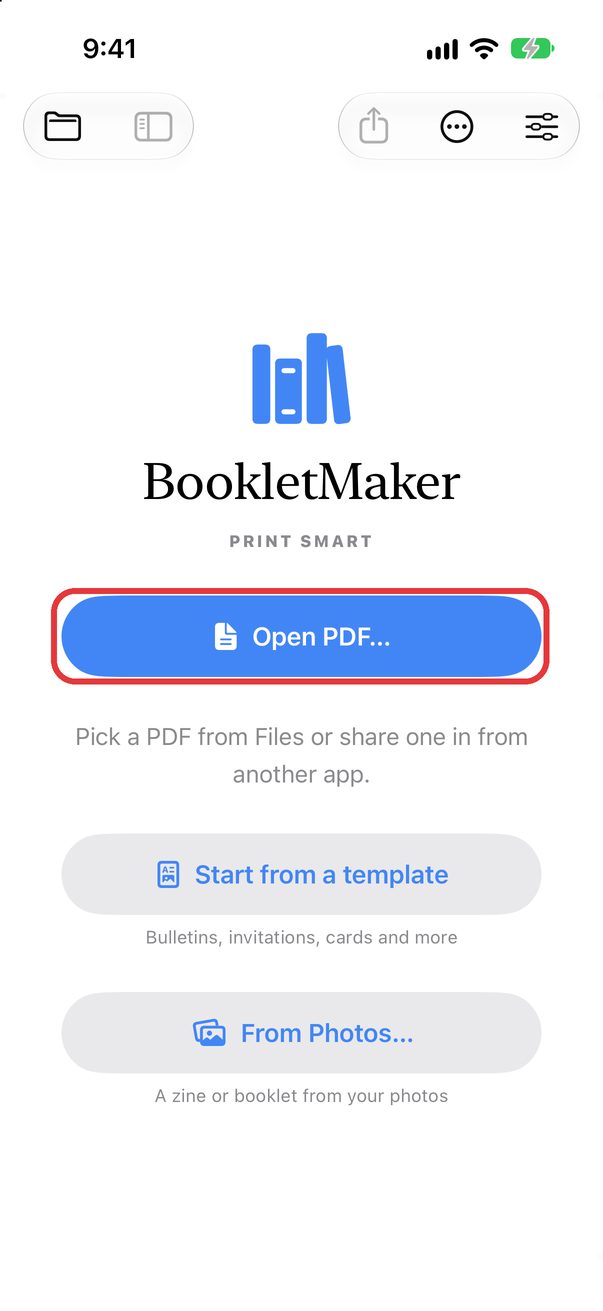
Tap Open PDF… and pick your PDF. - Choose a booklet preset. Tap Settings (the sliders button at the top right), then tap Standard Booklet under Presets. For a set size, open the Booklets group: A5 Booklet on A4 and Half Letter Booklet on Letter suit most home printers.
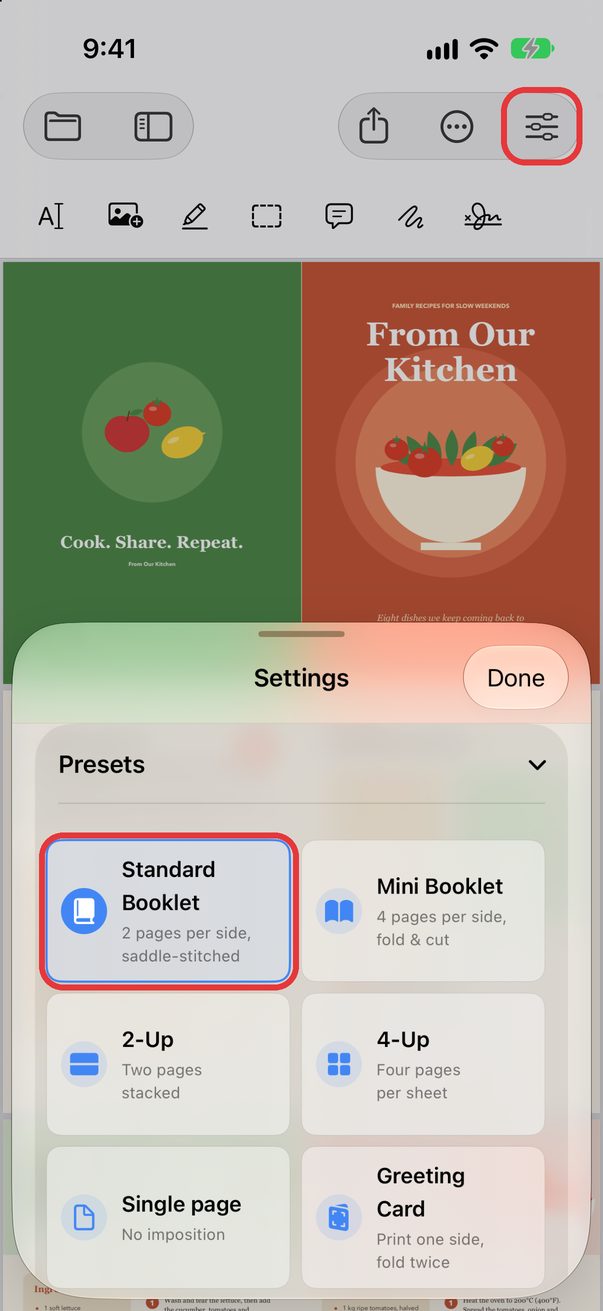
Tap Settings, then Standard Booklet. - Check the sheets. Tap Done to close Settings. The preview shows each printed sheet, so you can see how the pages pair up before using any paper.
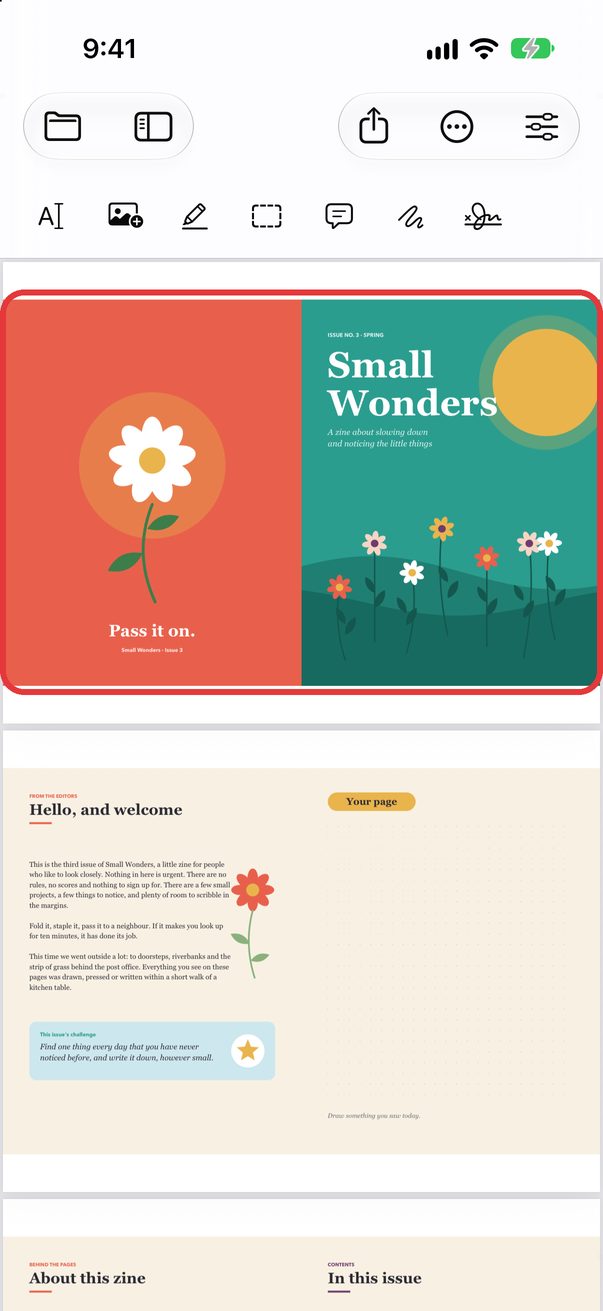
Scroll through the sheets; the first carries the back cover beside the front cover. - Print. Tap Export (the square with an arrow, at the top right), then Print. Choose your printer and turn on Double-sided.
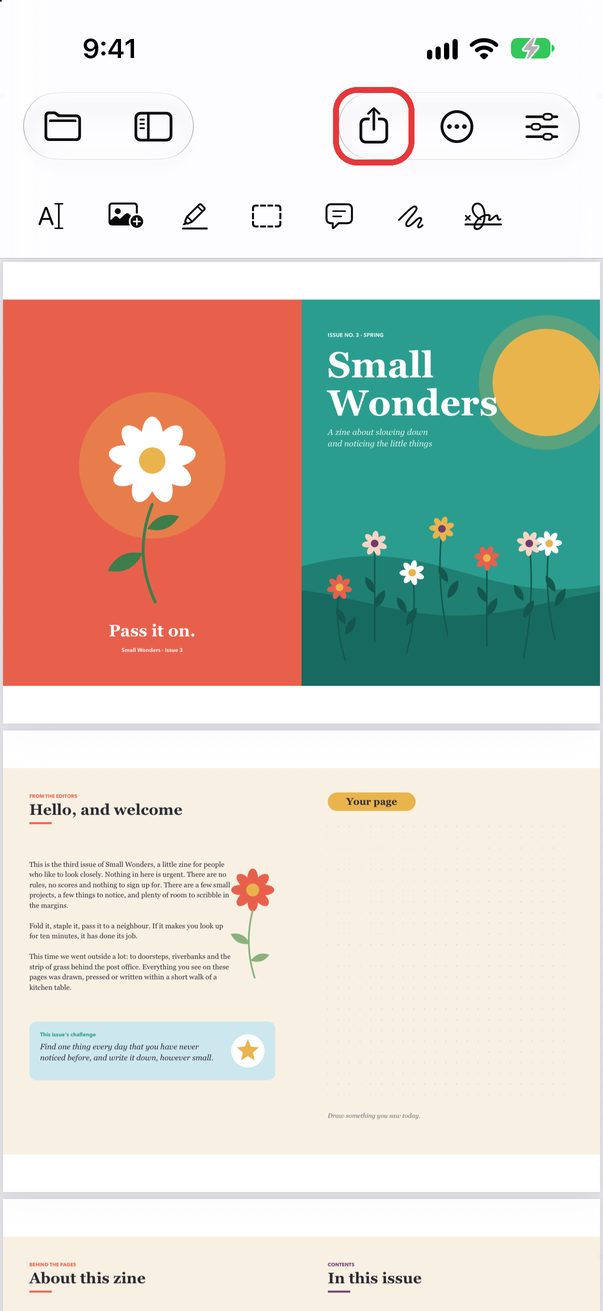
Tap Export, then Print. - Or save it. In Settings, scroll to Output and tap Save PDF… to keep the laid-out booklet in Files. To send it on, tap Export, then Share imposed PDF: AirDrop it to a computer, mail it or send it to a print shop.
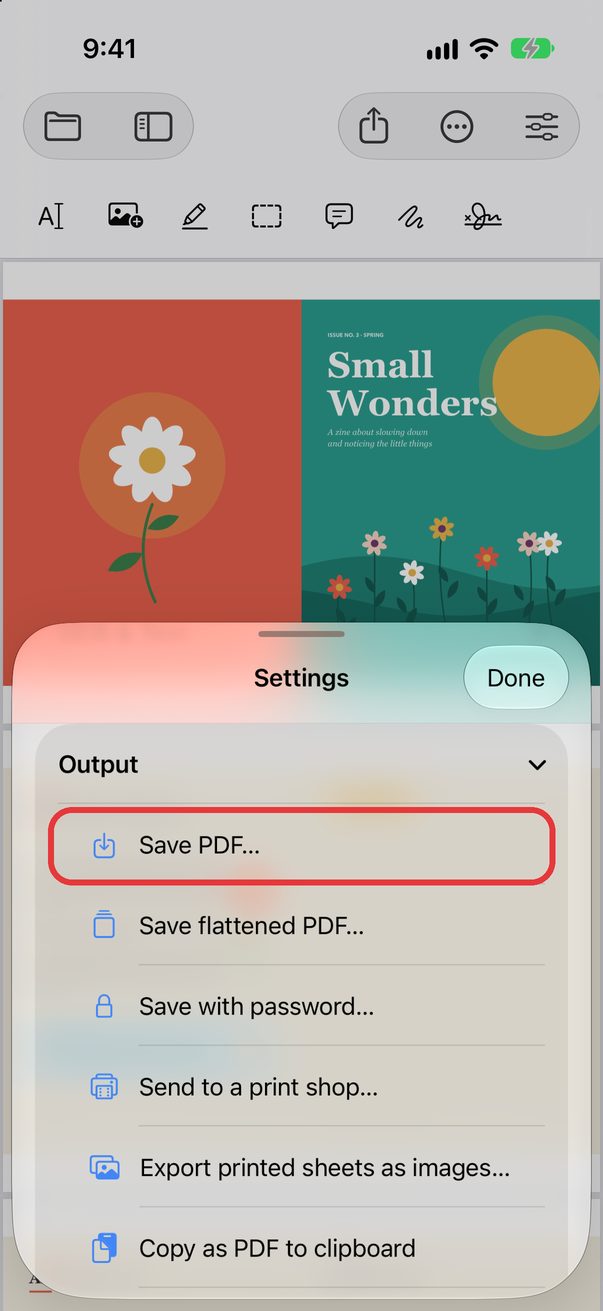
Settings ▸ Output ▸ Save PDF… keeps the booklet as a PDF.
Lost in the settings? Type what you want, such as “staple marks” or “page numbers”, into the “What do you want to fix?” box at the top of Settings.
What if my printer only prints on one side?
Many home inkjets can't turn the paper over. Turn on Manual duplex (non-duplex printers) in Settings, under Layout details. BookletMaker prints all the fronts, shows you how to put the stack back in the tray, then prints the backs.
Printers differ in which way the paper has to go back in. The first time, type “flips” into the “What do you want to fix?” box, choose Test which way my printer flips pages and print the test sheet before the real job.
Why are the backs upside down?
The printer turned the paper over along the long edge, while booklet sheets need the short edge. iPhone and iPad don't let you pick the edge, so the fix is in BookletMaker: turn on Flip backs upside down in Layout details and print again.
Fold and staple the booklet
Fold each sheet in half on its own and crease it firmly, slide the sheets inside each other in order and staple along the fold. Two staples suit most booklets. The PDF to booklet guide covers stapling without a long-arm stapler, sewing the spine and trimming thicker booklets.
Tips for good results
- Pick the paper size in the app and on the print screen. If they differ, the printer scales the sheet and the fold drifts off-centre.
- Mind the page count. Booklets come in multiples of four pages; BookletMaker adds blank pages to fill any gap.
- Keep important things away from the edges. Home printers leave a small unprinted border, and the fold takes a little of each inner margin.
Quick answers
Can an iPhone print a booklet without an app?
Not in booklet order. The iPhone and iPad print screen prints pages in reading order, so the pages need arranging first, in an app or the web tool. A print shop can also do it if you send them the PDF.
Which printers work for booklets from an iPhone?
Any printer your iPhone or iPad can print to with AirPrint. Printers that print on both sides do each sheet in one pass; one-sided printers print the fronts, then the backs.
Can I lay out the booklet on my phone and print it on a computer?
Yes. Save the laid-out PDF, open it on the computer and print it on both sides with short-edge binding at 100% scale, with any booklet setting in the printer's software turned off.