
How to print a booklet on a Mac
Why Preview can't do it, the free ways, the print settings that matter and step-by-step instructions that work with any printer.
25 November 2026
To print a booklet on a Mac, open the PDF in something that has a booklet layout, print it on both sides of the paper with short-edge binding at 100% scale, then fold the sheets in half and staple them along the fold. The Mac can't do the first part on its own: Preview and the standard print dialog print pages in reading order, and a booklet needs them rearranged so they read correctly once folded.
The short version
- Open the PDF in a tool with a booklet layout: your printer's own software, Adobe Acrobat Reader or BookletMaker.
- Choose your paper size. The booklet comes out at half of it.
- Print on both sides with short-edge binding, at 100% scale.
- Fold each sheet, slide them inside each other and staple along the fold.
Why can't Preview print a booklet?
Each sheet of a booklet carries four pages, two on each side, and the sheets nest inside each other. So the pages that sit side by side on a sheet are rarely next to each other in the story: in an eight-page booklet, the outside of the first sheet holds page 8 beside page 1. Working out that order is called imposition.
Preview's print dialog has Pages per Sheet and Two-Sided settings in its Layout section. Pages per Sheet puts two pages side by side, but in reading order, which suits handouts, not booklets. Pages, TextEdit and most other Mac apps work the same way, so the usual route is to save a PDF and lay it out with one of the tools below.
Free ways to print a booklet on a Mac
- Your printer's booklet setting. Many printer drivers add a Booklet option to the Mac print dialog, in the section named after the printer or under its printer options. Use it on an ordinary PDF only; on a PDF that is already laid out as a booklet, it shuffles the pages a second time.
- Adobe Acrobat Reader. The free Reader has a booklet layout: choose File ▸ Print, then Booklet under Page Sizing & Handling.
- Microsoft Word, if you still have the original document: its Book fold page setting builds the booklet as you edit.
- The BookletMaker web tool. The free web tool runs in Safari, Chrome or Firefox, lays out booklets of up to 20 pages without uploading your PDF, and shows each printed sheet before you print.
How to print a booklet with BookletMaker for Mac
BookletMaker is on the Mac App Store. It previews every sheet front and back, has presets for common paper sizes and helps one-sided printers print both sides. Booklet layouts on the Mac are part of BookletMaker Pro.
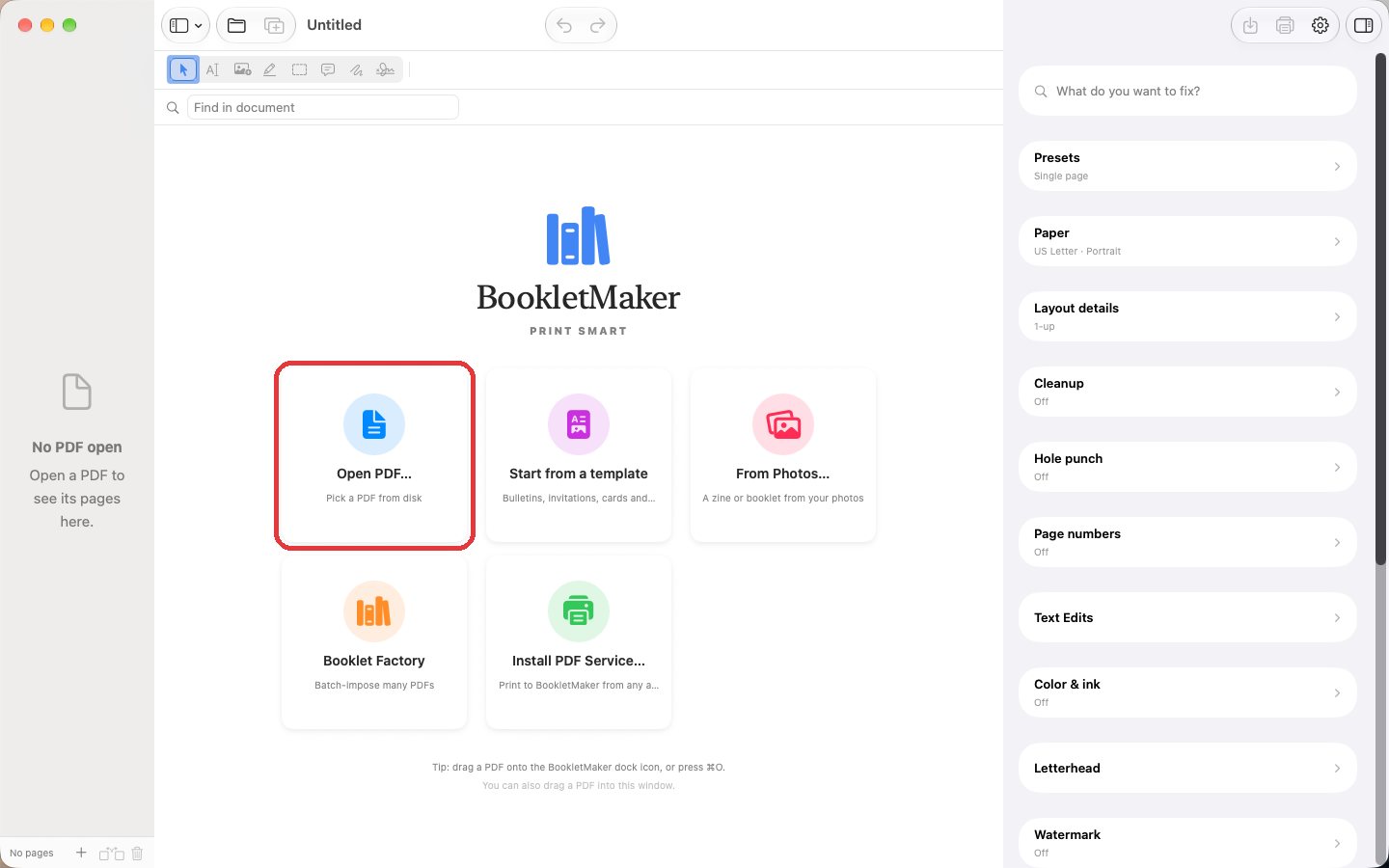
- Open the PDF. Click Open PDF… on the welcome screen, or the folder button in the toolbar, or drag the file onto the window.
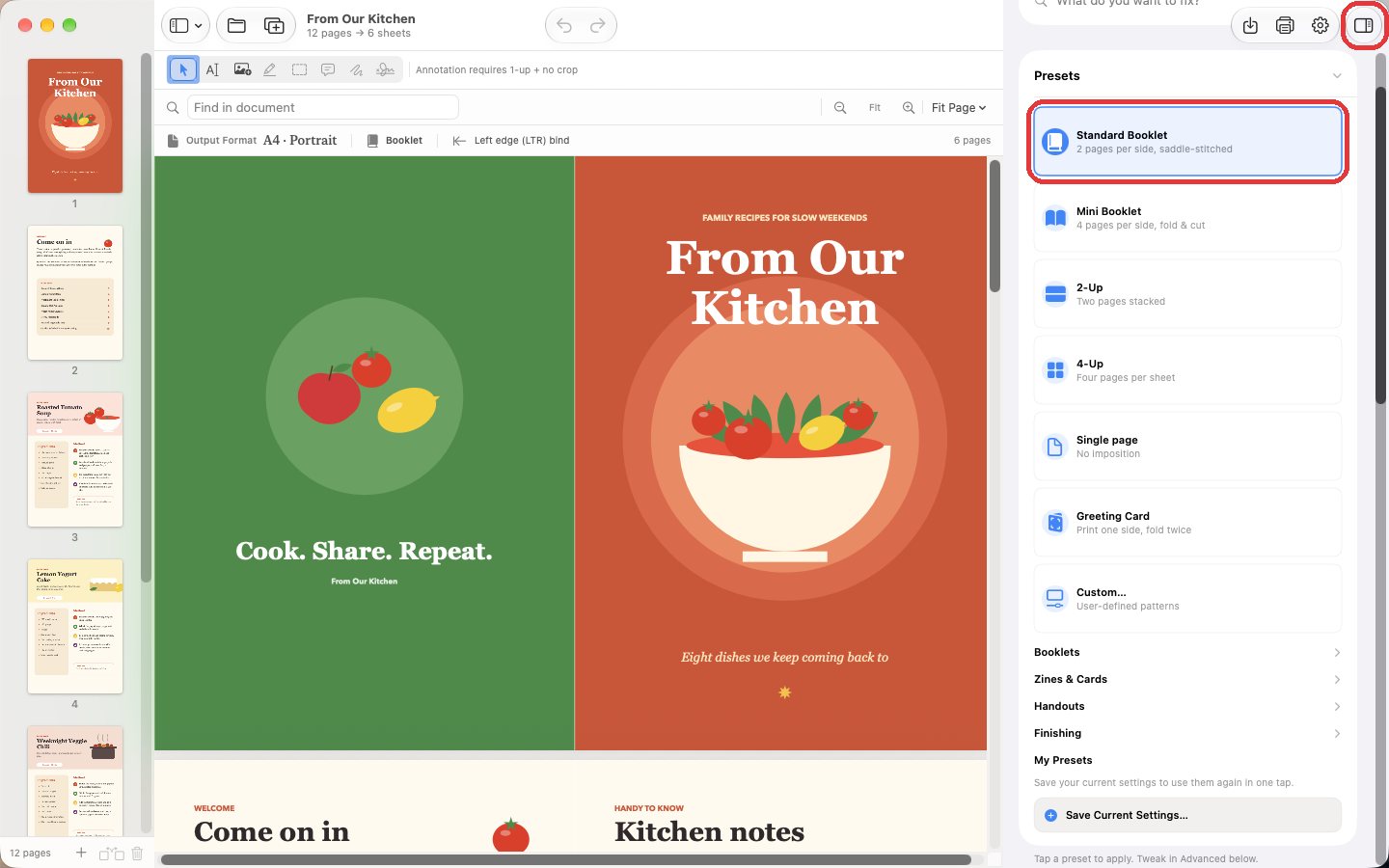
Click Open PDF… to choose your PDF. - Choose a booklet preset. Click Inspector at the right end of the toolbar and pick Standard Booklet under Presets. For a set size, open the Booklets group: A5 Booklet on A4 and Half Letter Booklet on Letter cover most home printing. If you can't find a setting, type what you want into the “What do you want to fix?” box at the top of the inspector.
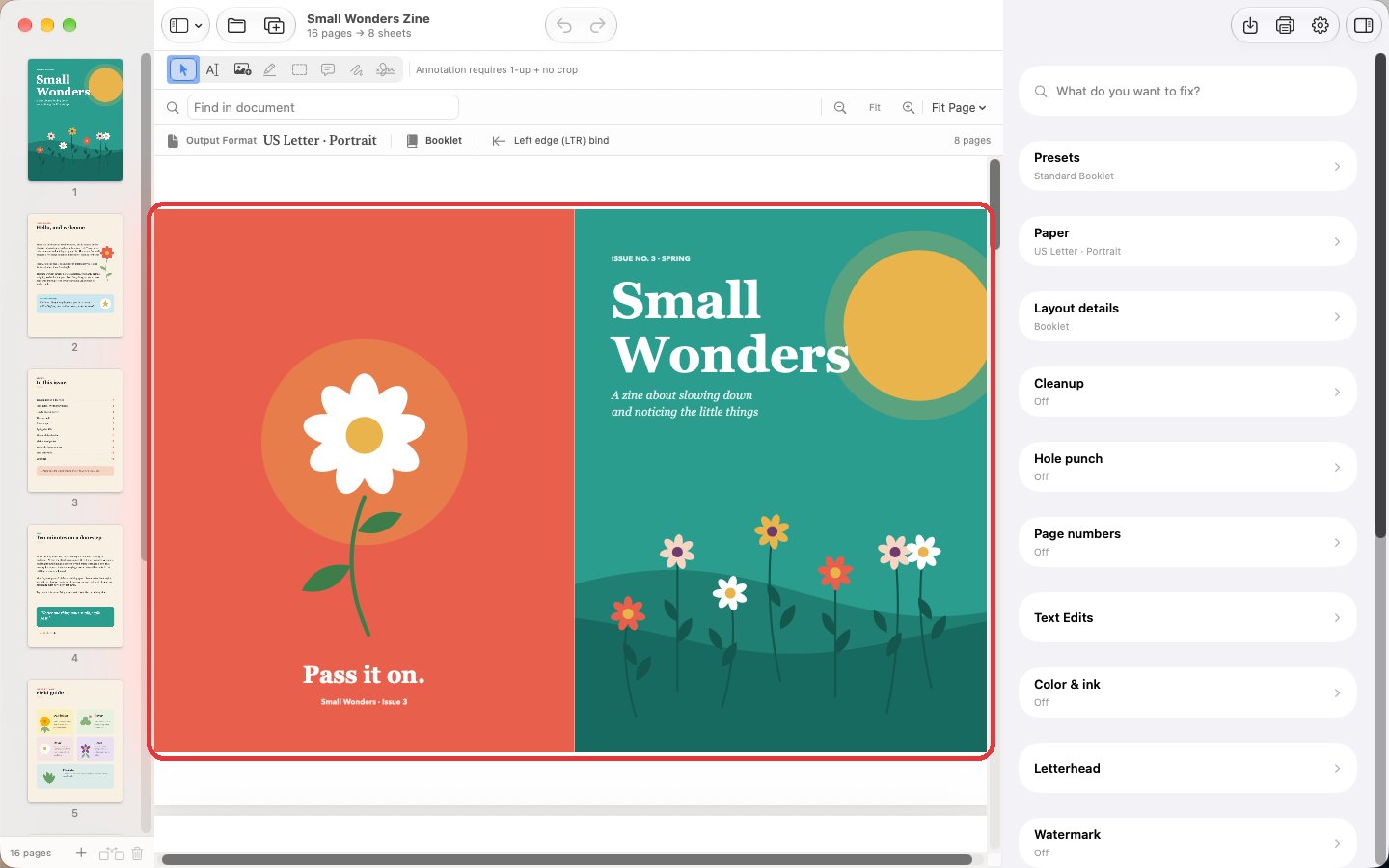
Click Inspector (top right), then Standard Booklet under Presets. - Check the sheets. The preview shows each printed sheet, front and back. Step through them and make sure the pages pair up as you expect.
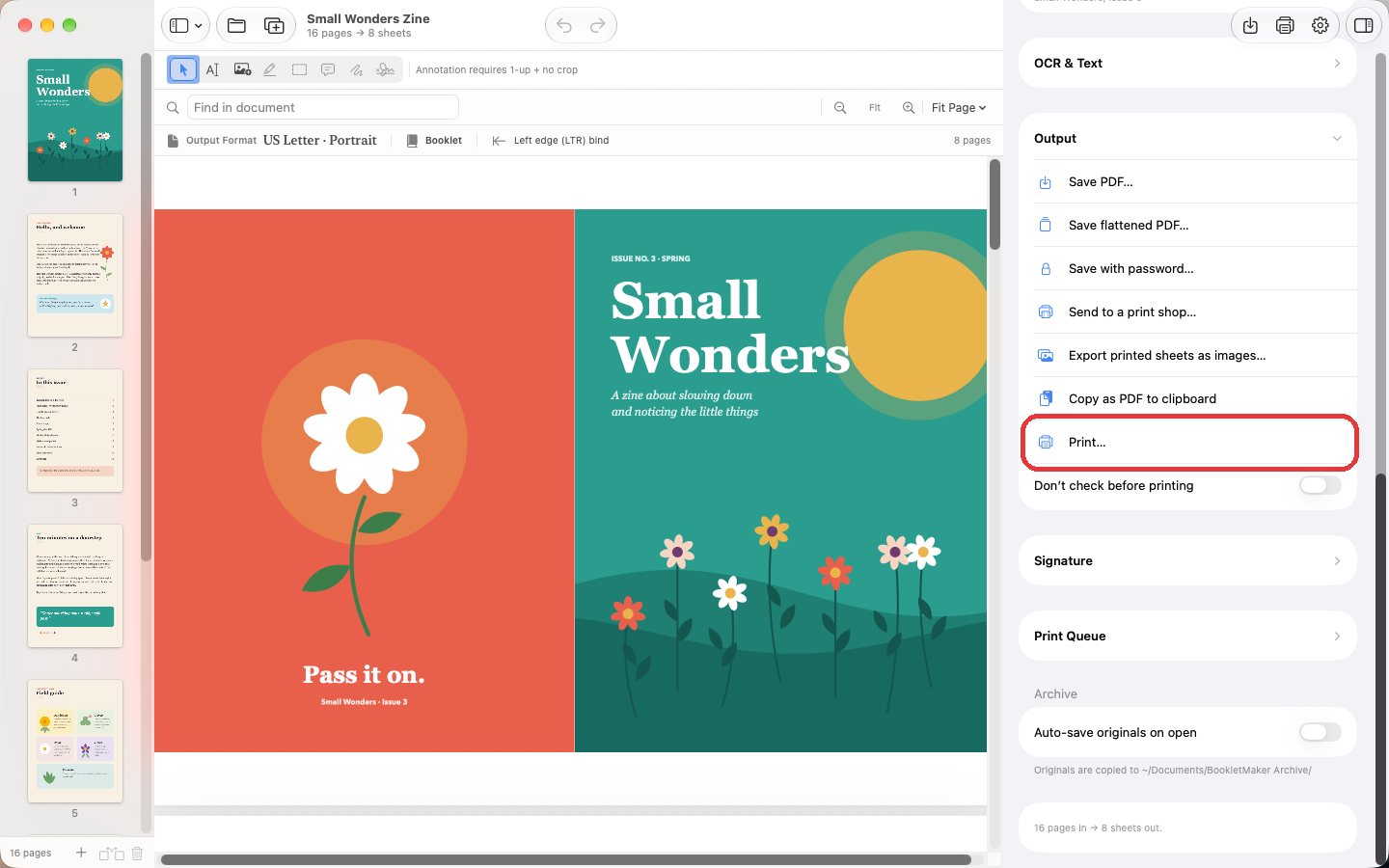
The preview shows each printed sheet; scroll down for the rest. - Print. Click Print…, turn on two-sided printing and choose short-edge binding. Layout details shows which edge your sheets need.
Click Print… in the Output section, or the printer button in the toolbar. - Or save it. Save PDF… keeps the laid-out booklet to print later or to take to a print shop.
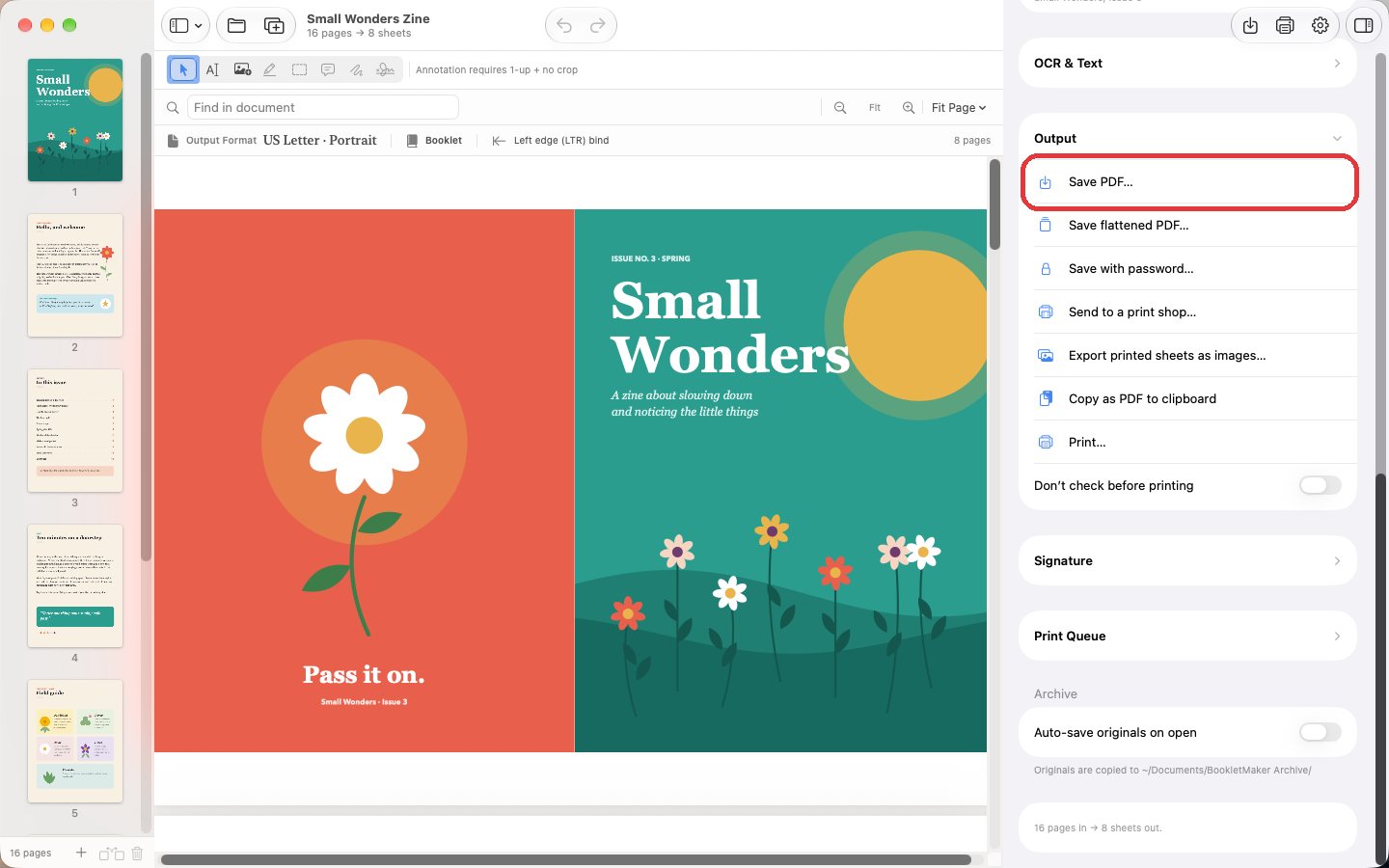
Save PDF… keeps the booklet as a PDF.
Printer only prints on one side? Turn on Manual duplex (non-duplex printers) in Layout details. BookletMaker prints all the fronts, shows how to turn the stack and put it back in, then prints the backs.
Print to BookletMaker from any Mac app
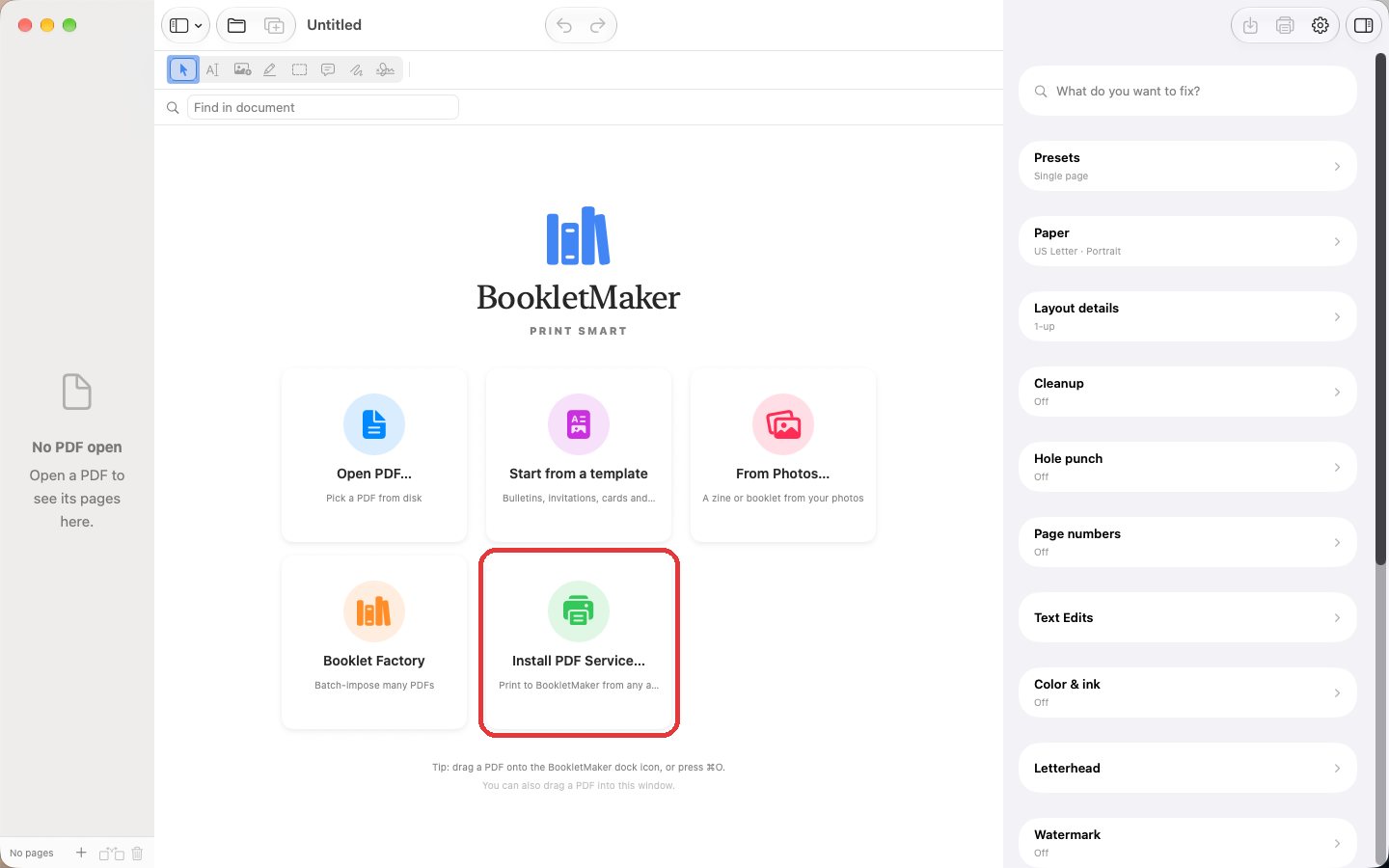
The BookletMaker welcome screen has an Install PDF Service… button. It adds BookletMaker to the PDF menu at the bottom of the Mac print dialog, so in Pages, Word, Safari or any other app you can choose File ▸ Print, then PDF ▸ BookletMaker, and the document opens in BookletMaker ready to lay out as a booklet.
Which print settings matter on a Mac?
- Two-sided, short-edge binding. Booklet sheets print in landscape, so the paper has to turn over along its short edge.
- Scale at 100%. “Scale to fit” shrinks the sheet a little, and the fold no longer falls in the middle of each spread.
- One booklet layout, not two. If the PDF is already in booklet order, leave the printer's own booklet option off.
- A test copy first. Print one copy on plain paper, fold it and read it through before printing the rest.
Fold, staple and finish
Fold each sheet in half on its own and crease it firmly, then slide the sheets inside each other in order and staple through the fold, with two staples for most booklets. The PDF to booklet guide covers stapling without a long-arm stapler, sewing the spine and trimming thicker booklets.
When the booklet comes out wrong
- The backs are upside down: the printer turned the paper on the long edge. Choose short-edge binding, or turn on Flip backs upside down in Layout details.
- The pages are smaller than expected: the print dialog scaled the sheet. Set Scale to 100%.
- There are blank pages at the end: booklets need a multiple of four pages, so blanks fill the gap. To keep your back cover last, type “back cover” into the “What do you want to fix?” box.
Quick answers
Can Preview print a PDF as a booklet?
No. Preview can print two pages per sheet and on both sides of the paper, but always in reading order, so a folded stack comes out jumbled. You need a booklet layout from your printer's software, Adobe Acrobat Reader or BookletMaker.
What paper size makes what booklet size?
A booklet comes out at half the sheet. US Letter paper makes a 5.5 × 8.5 inch booklet and A4 makes an A5 booklet. For full-size pages, print on Tabloid or A3 if your printer takes it.
Is long-edge or short-edge binding right for a booklet?
Short edge. Booklet sheets print in landscape, so a long-edge flip turns every back upside down. If your printer can only flip on the long edge, BookletMaker's Flip backs upside down setting corrects for it.
Do I need BookletMaker Pro on a Mac?
Booklet layouts in the Mac app are part of BookletMaker Pro. The free web tool makes booklets of up to 20 pages in Safari, Chrome or Firefox.