
How to make a booklet from a PDF online
How to lay a PDF out as a booklet in the browser on any computer, Chromebooks included, then print it on both sides and fold it.
25 November 2026
To make a booklet from a PDF online, open it in a browser-based booklet tool such as the BookletMaker web tool, choose the booklet layout and your paper size, check the sheets, then download the laid-out PDF or print it straight away on both sides of the paper, flipping on the short edge. There is nothing to install, and with the BookletMaker web tool the PDF never leaves your computer.
The short version
- Open bookletmaker.app/tool/ in your browser.
- Drop in your PDF and set Format to Booklet (saddle-stitch).
- Pick your paper size and check the sheet preview.
- Click Export PDF… to save the booklet, or Print… to print it on both sides, short edge, at 100%.
Why does a booklet need its own layout?
A booklet is made of sheets folded in half and nested inside each other, with four pages on each sheet. The pages that sit side by side on a sheet are rarely neighbours in the story: in an eight-page booklet, the outside of the first sheet carries page 8 beside page 1. A booklet tool works out that order, called imposition, so the pages read correctly once folded. Two things follow from it: the page count rounds up to a multiple of four, with blank pages added at the end, and the booklet comes out at half the paper size, so Letter paper makes a 5.5 × 8.5 inch booklet and A4 makes A5.
How to make a booklet in the BookletMaker web tool
- Open the tool. Go to the web tool in Chrome, Edge, Safari or Firefox, on Windows, a Mac, Linux or a Chromebook. The first time, it asks whether to share anonymous usage data; either answer works.
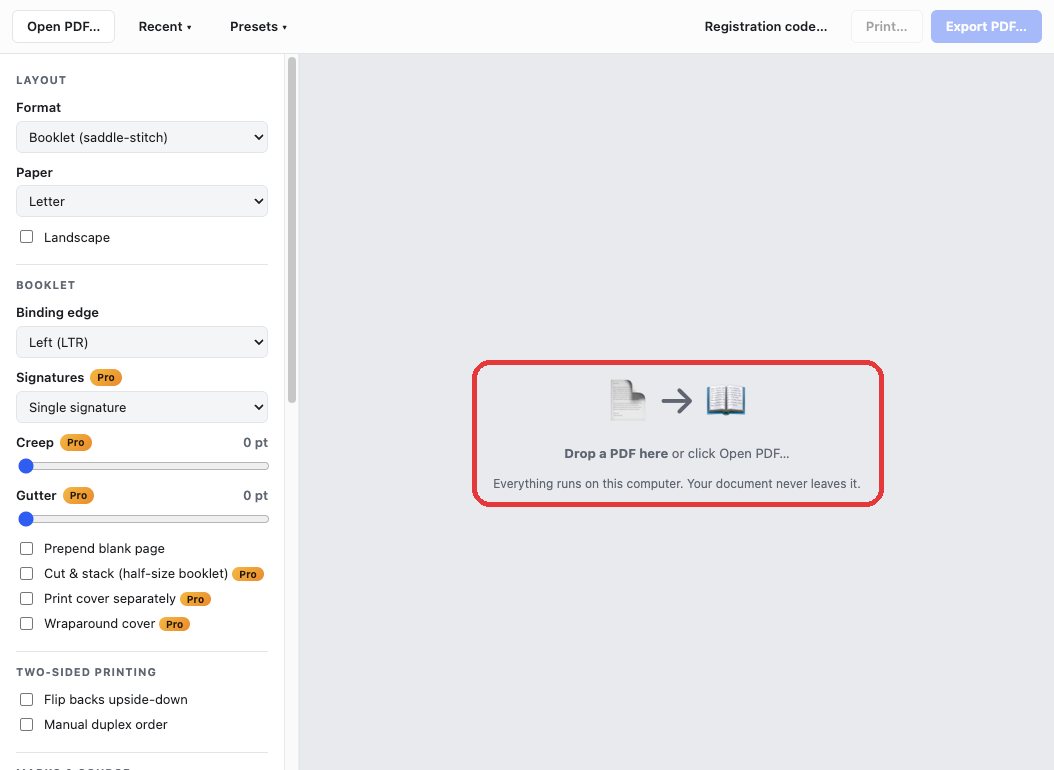
The web tool opens ready for a PDF: drop it in the middle of the page. - Add your PDF. Drag the file onto the page, or click Open PDF….
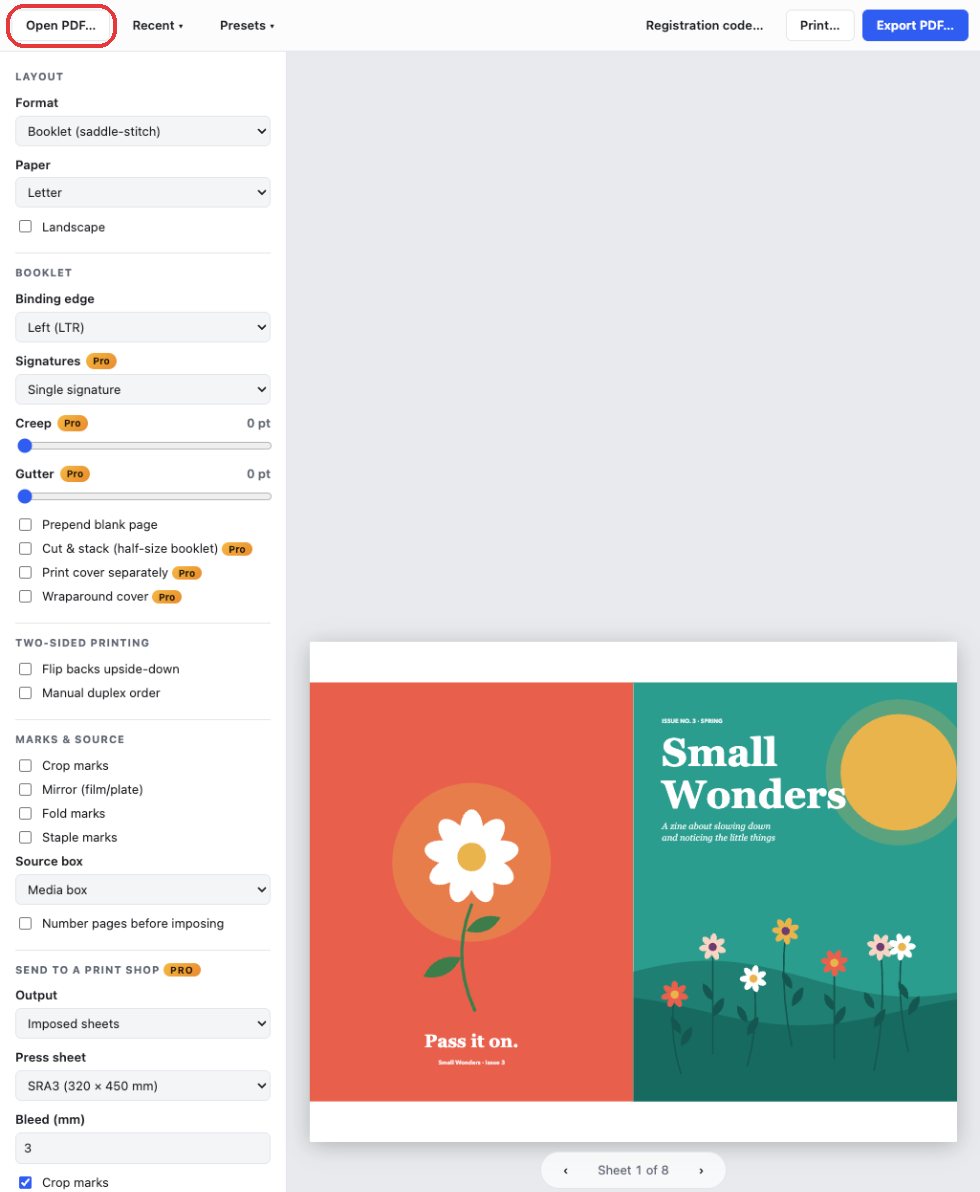
Click Open PDF…, or drag the PDF onto the page. - Set the layout. Under Layout, set Format to Booklet (saddle-stitch) and choose your Paper, such as Letter or A4. Under Booklet, keep the Binding edge on the left for most languages, or set it to the right for Arabic, Hebrew or manga.
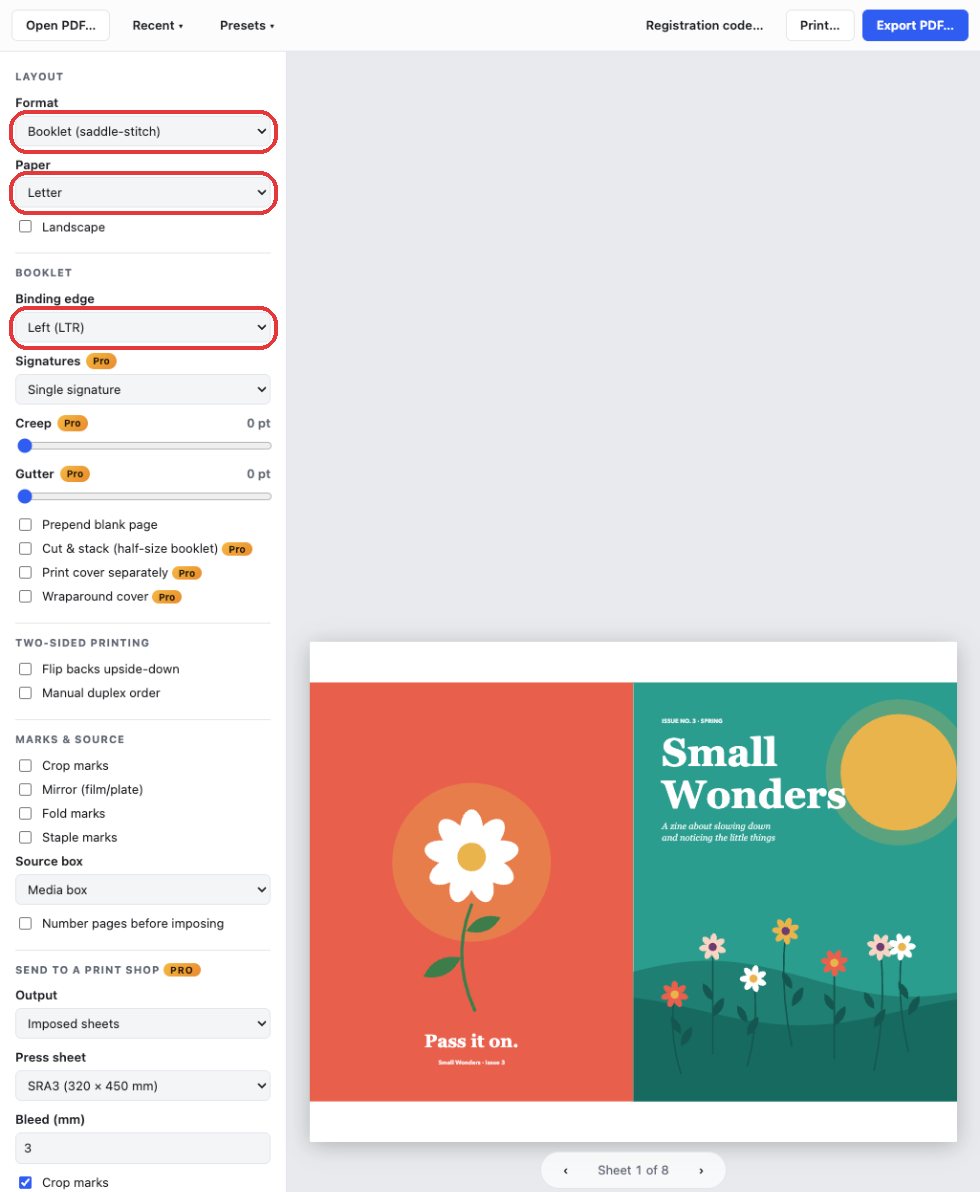
Format: Booklet (saddle-stitch); then Paper and Binding edge. - Check the sheets. The preview shows one printed sheet at a time, and the arrows below it step through them: Sheet 1 of 8 for a 16-page booklet.
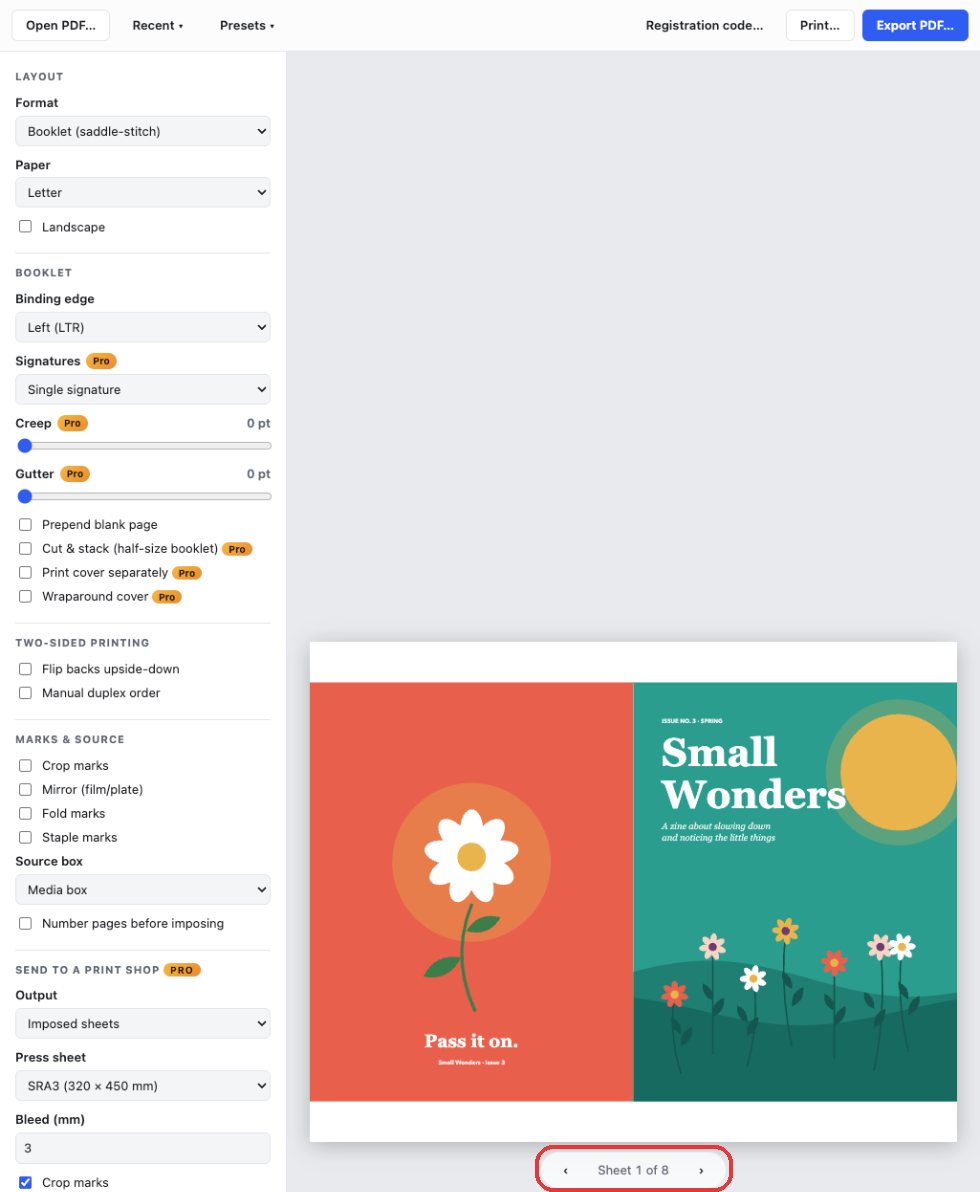
Step through the sheets with the arrows below the preview. - Save or print. Export PDF… downloads the laid-out booklet, ready to print later or to send to a print shop. Print… opens the print dialog: choose two-sided, flip on the short edge, and keep the scale at 100%.
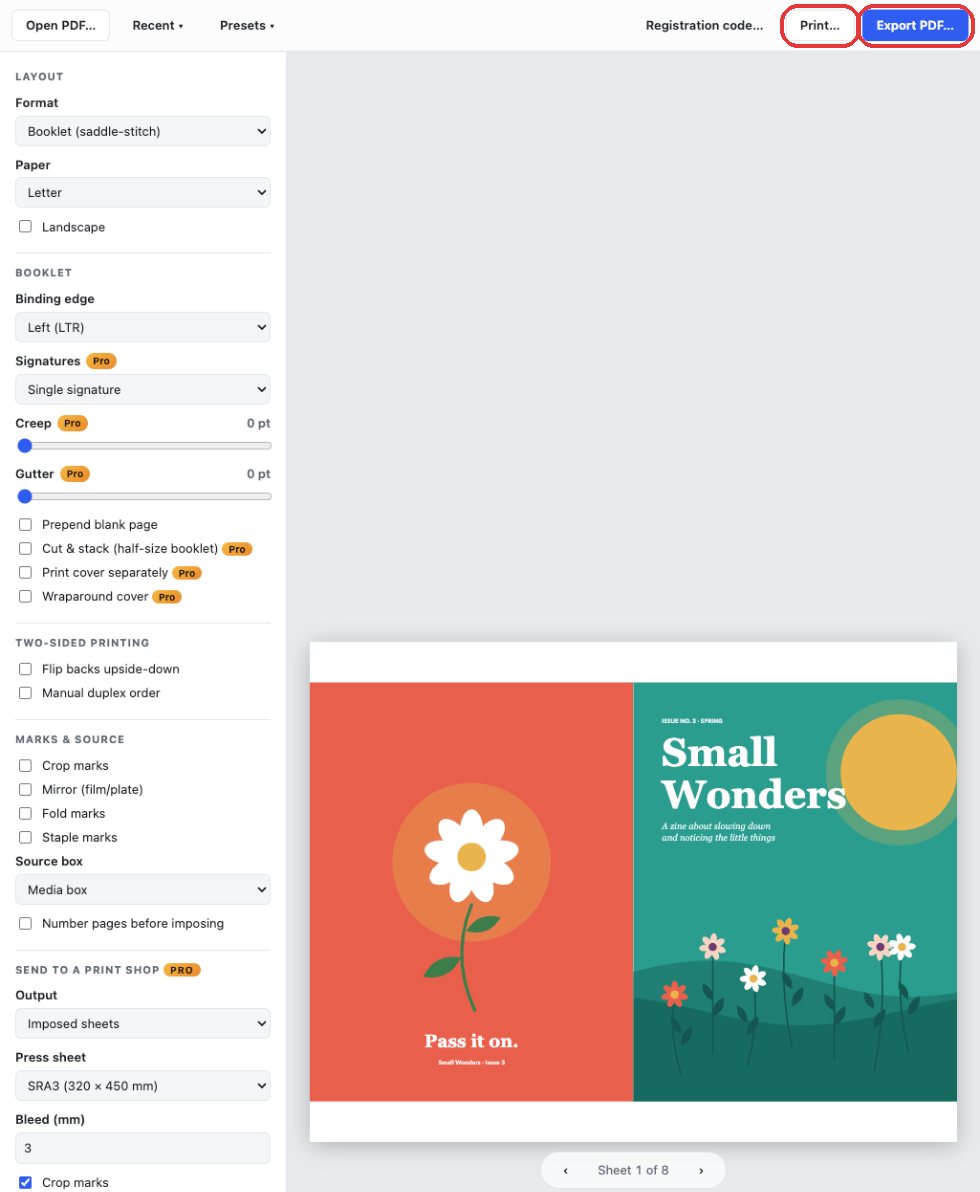
Export PDF… downloads the booklet; Print… prints it.
What else can the web tool do?
- Mini zines. Mini-booklet (quarter fold) fits eight small pages on one sheet, four on each side, folded twice. The zine guide walks through it.
- Handouts. 2-up, 4-up and other N-up grids put several pages side by side in reading order, at any length.
- Page numbers and margins. Add page numbers before the pages are arranged, and crop wide margins so the pages fill the sheet.
- Sheets as images. Export images… saves each printed side as a picture, for copy-shop kiosks and photo printers.
Printing tips that save paper
- Backs upside down? The printer turned the paper on its long edge. Choose the short edge, or tick Flip backs upside-down under Two-sided printing and print again.
- One-sided printer? Tick Manual duplex order. The PDF then holds all the fronts first and the backs after them: print the first half of the pages, turn the stack over, put it back in the tray and print the second half.
- Pages shrunk? The print dialog scaled the sheet to fit. Set the scale to 100%, or actual size.
- Test first. Print one copy on plain paper, fold it and read it through before printing the rest.
Then fold each sheet in half, slide the sheets inside each other in order and staple through the fold. The PDF to booklet guide has more on folding, stapling and trimming.
Quick answers
Is my PDF uploaded to a server?
No. The BookletMaker web tool lays the booklet out inside your browser, on your own computer, and the PDF isn't sent anywhere.
Does it work on a Chromebook?
Yes. It runs in any modern browser: Chrome on a Chromebook, Windows, Mac or Linux, and Edge, Safari or Firefox.
How many pages can an online booklet have?
Booklets of up to 20 pages are free, and 2-up and 4-up layouts are free at any length. A BookletMaker Pro registration code unlocks longer booklets, signatures, creep and gutters.
Can I make a mini zine online too?
Yes. Set Format to Mini-booklet (quarter fold) for eight small pages from one sheet, four on each side, folded twice.